
- Product Types
- Prices Types
- Adding Products
- One Time Pricing
- Subscription Pricing
- Subscription Trials Setup
- Installment Pricing
- Donation / Pay What You Want
- Inventory Management
- Product Variants
- Variant Images
- Digital Downloads
- Change Product Availability
- Product Collections
- First-Time Payment Discounts
- Manage Product Access
- Create Product With Free Trials
- Charge Set Up Fee on Trials
- Product List
- Product Pages
- Product Content
- Custom Buy Links
- Product SEO
- Change Permalinks
- Custom Fields
- Related Products
- Price Boost
- Test Mode/Payments
- Edit & Customize Form
- Change Form Template
- Delete SureCart Forms
- Add Checkout Form
- Checkout Form With Gutenberg
- Checkout Form in Elementor
- Custom Thank You Page
- Create Donation Form
- Customize Confirmation Popup
- Include Coupons in URLs
- Pre-Fill Checkout Fields
- Change Checkout Texts
- Password Field in Checkout
- Default Country Code
- Add Terms to Checkout
- Conditional Block Checkouts
- Remove Coupon Field
- Hide Quantity Option
- Disable Quantity Editing
- Disable Item Removal
- Country Specific Purchases
- Update Store Details
- Dark Mode
- Orders & Receipts
- Manage Slide-out Cart
- Customers Section Overview
- Create Customer
- Delete Customer
- Update Customer Details
- Edit Invoice Details
- Create Shipping Profiles
- Manage Shipping
- Disable Payment Processor
- Manage Store Notifications
- Manage PayPal Branding
- Transfer Store
- How to Download SureCart Purchase Invoice
- Fix View Order Button
- Fix Express Payment Buttons
- How To Stop Sending WooCommerce Notifications via SureCart?
- Fix PayPal Test Connection
- Fix Sign-In Loop
- Fix Order Confirmation Redirect
- Fix Divi Bullet Point Issue
- Fix Customer Dashboard
- Fix JSON Response Error
- Failed Payment Behavior
- Fix Stripe Zip Code Error
- Fix "Product Can’t Be Blank"
- Troubleshooting Guide
- PayPal IPN Warning Emails
- Caching Configuration for SureCart
- Why iDEAL Might Not Appear in Your Checkout
- Compatibility Guide
- Fix – SureCart store disconnected
Customizing Order Bump Placement
Order bumps are automatically added to your checkout forms. However, you may want to consider placing the Order Bumps field in a different spot. This can help increase visibility and encourage customers to add additional items to their orders.
In the following documentation, we’ll walk you through the steps to do this.
Creating a New Form
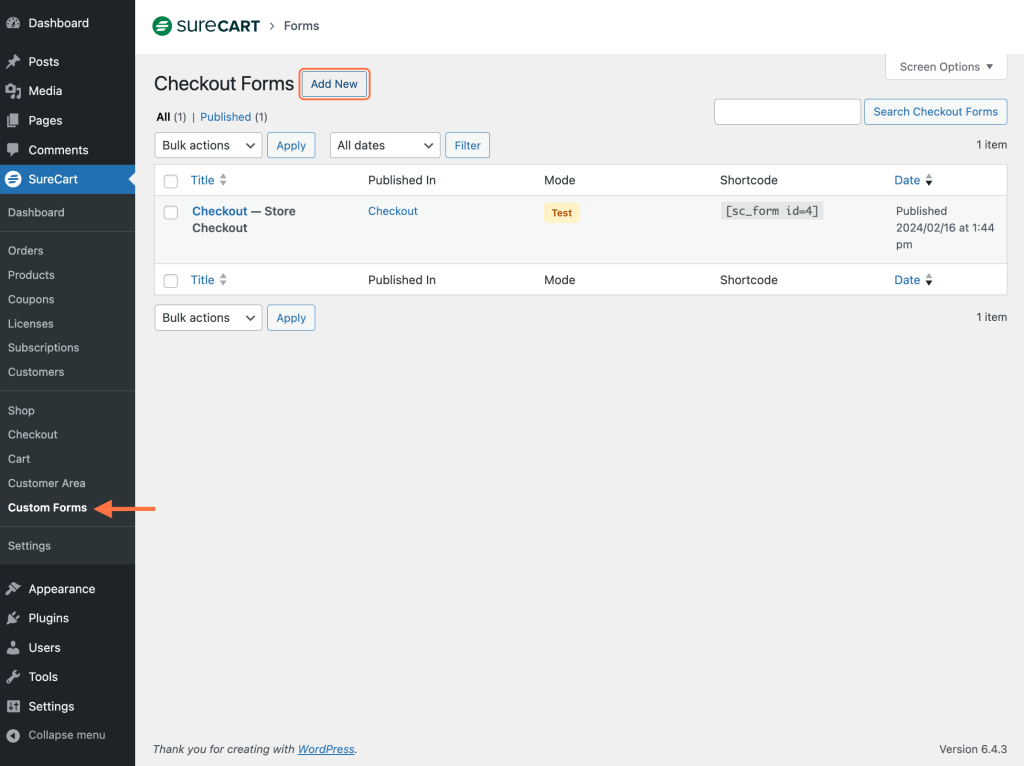
Step 1: Go to the SureCart menu, click on Custom Forms, then click on the Add New button to create a new Form.
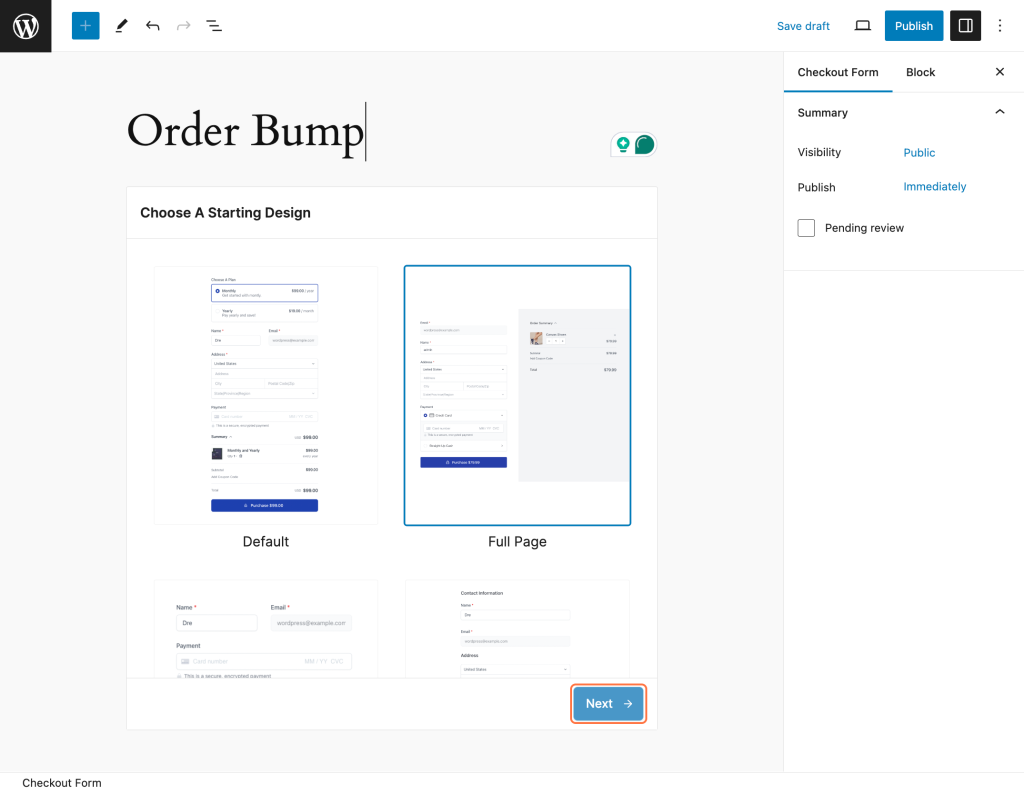
Step 2: Give a name to your Order Bump, choose a starting design – we chose “Full Page,” but you can select the most appropriate option for your needs – and then click the Next button.
Adding a Product to the Form
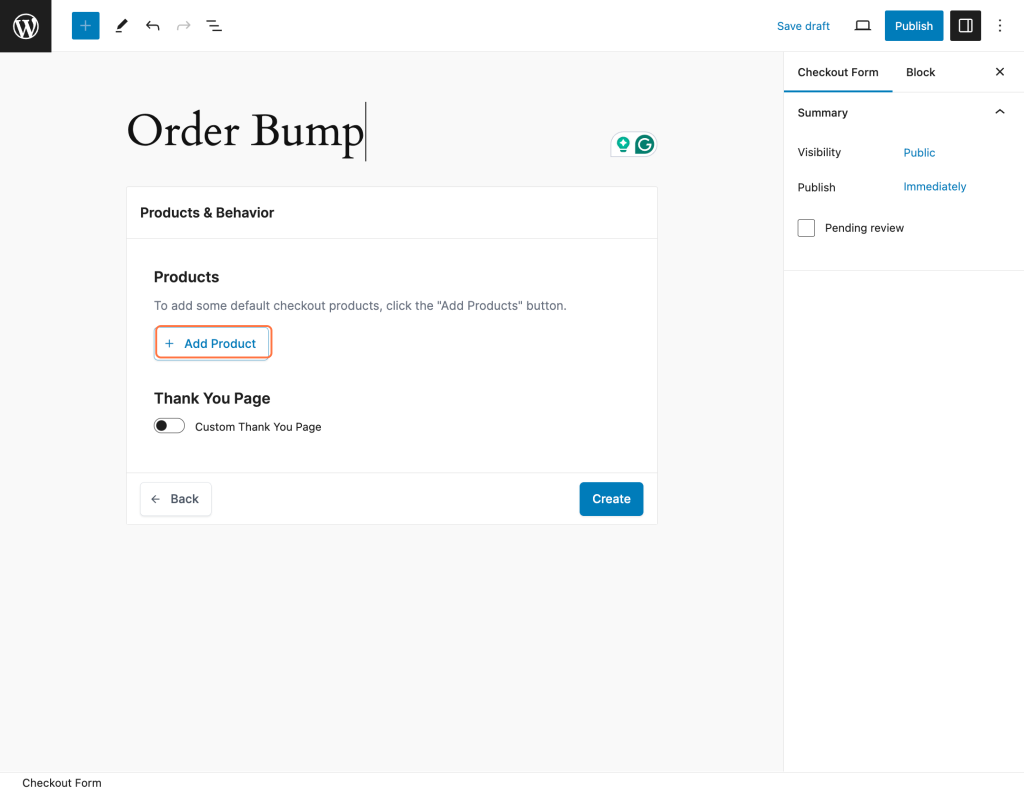
Step 3: Select the product or products you want to include in your form by clicking the + Add Product button. This will open the product selection screen.
Step 4: To find the product you want to add, click on the Select a product toggle. All available products will be displayed, and you can use the scrollbar to navigate through them.
Once you find the product you want to add, click on it to select it.
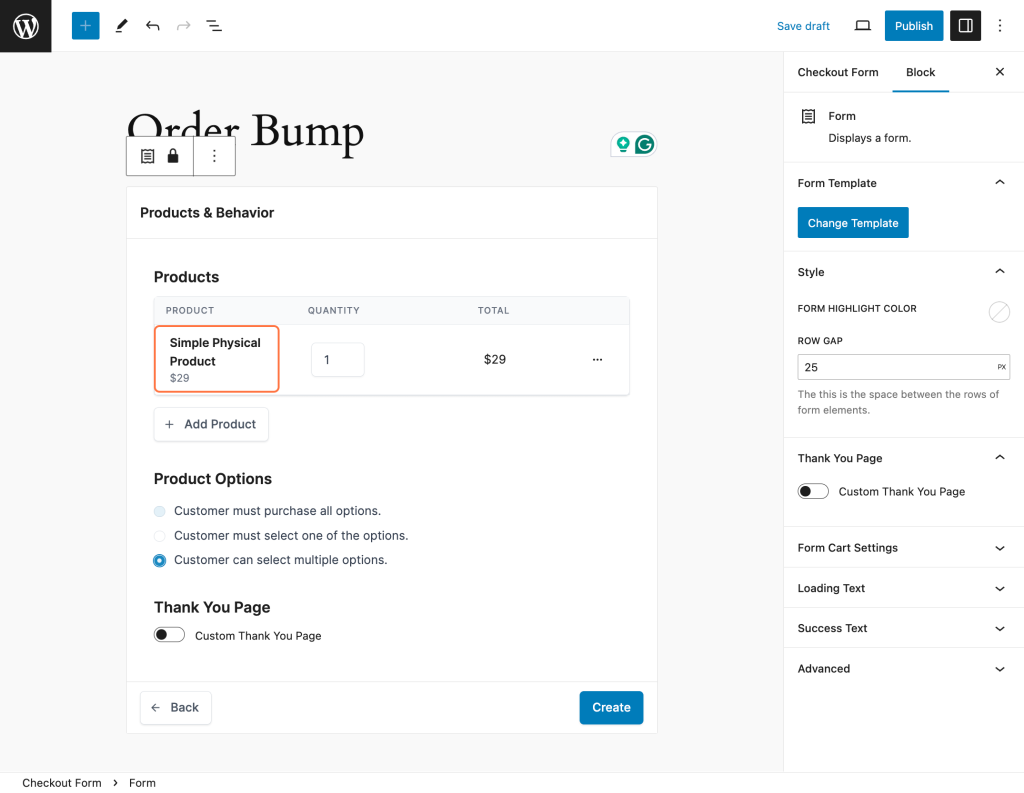
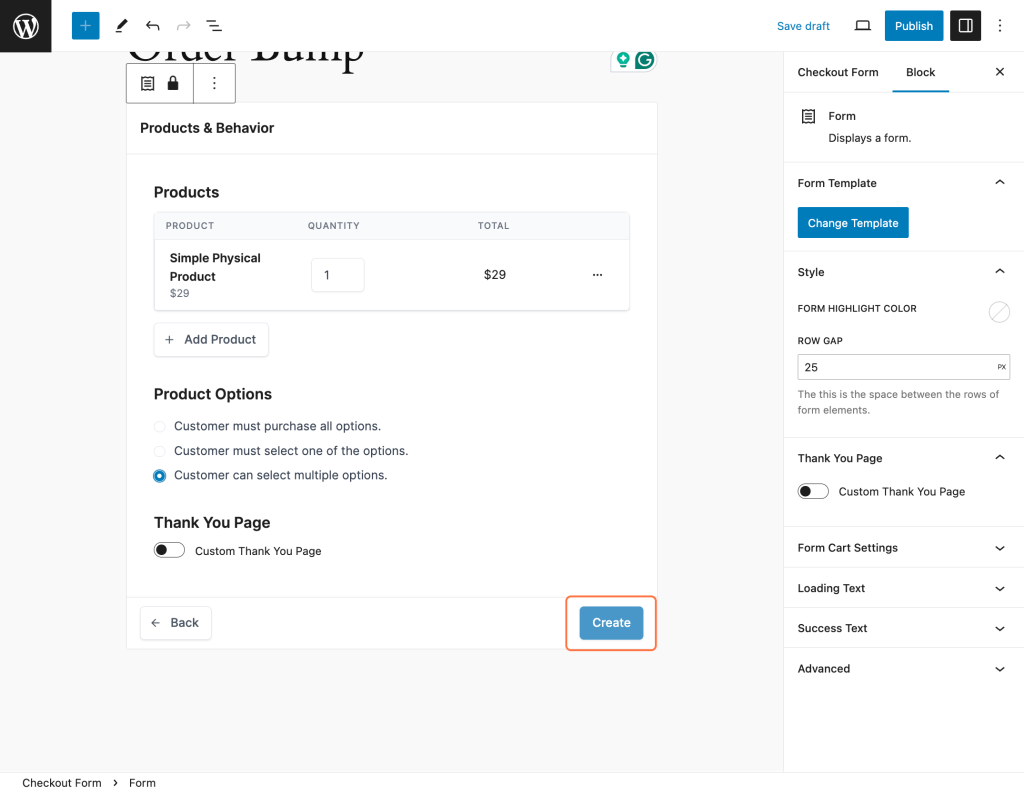
Step 5: On this screen, you have a variety of options to customize your Checkout Form. You can view the products you selected in the previous step, adjust the quantity, remove a product, or add another product.
In the Product Options section, you can choose the options that make the most sense for your needs. Additionally, you can create a custom thank-you page specific to this form.
Once you’re satisfied with your settings, simply click the Create button to finalize your Order Bump.
Adding Bump Block to Form
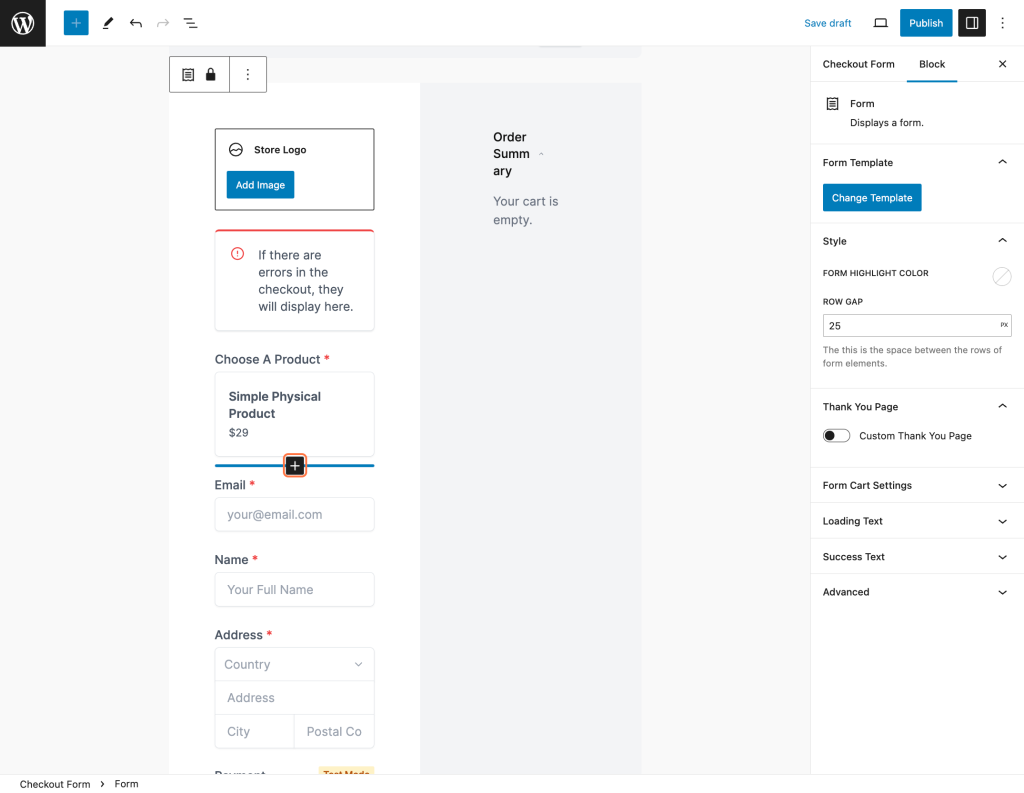
Step 6: To add an Order Bump element to your Form, simply hover your mouse between any existing element and a thick blue line with a plus sign in the middle will appear. Click on the plus icon to add the Order Bump element to your form.
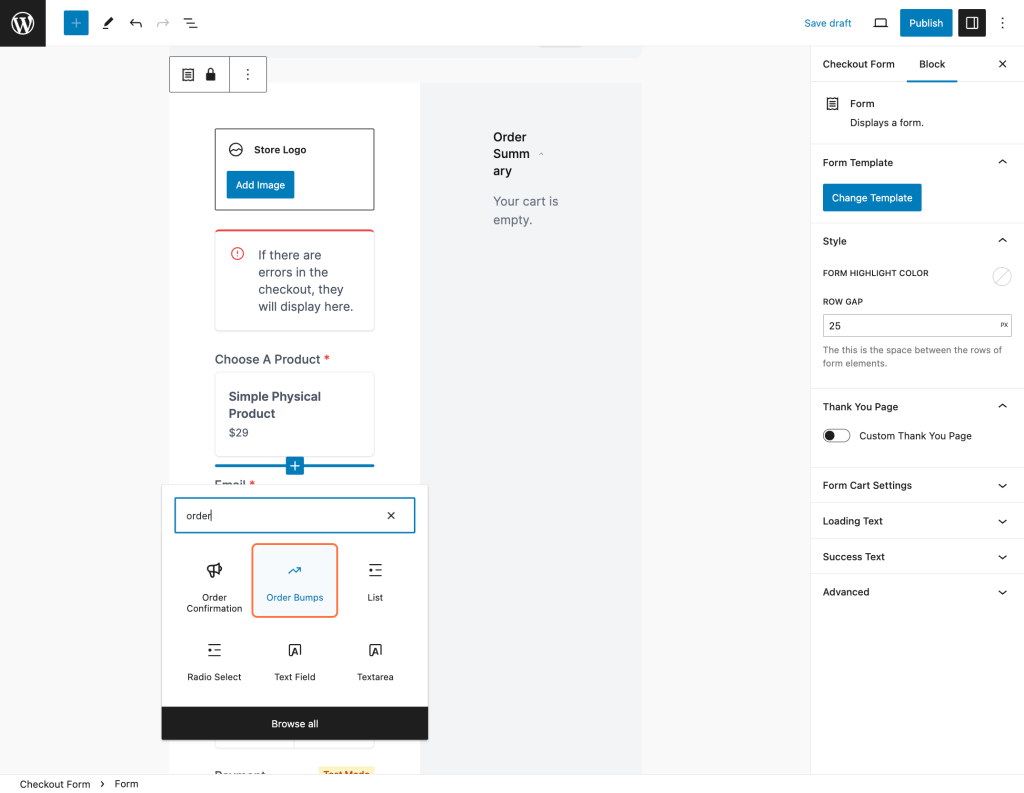
Step 7: After clicking on the plus icon, a popup will appear where you can choose the element you want to add. Search for the Order Bumps element.
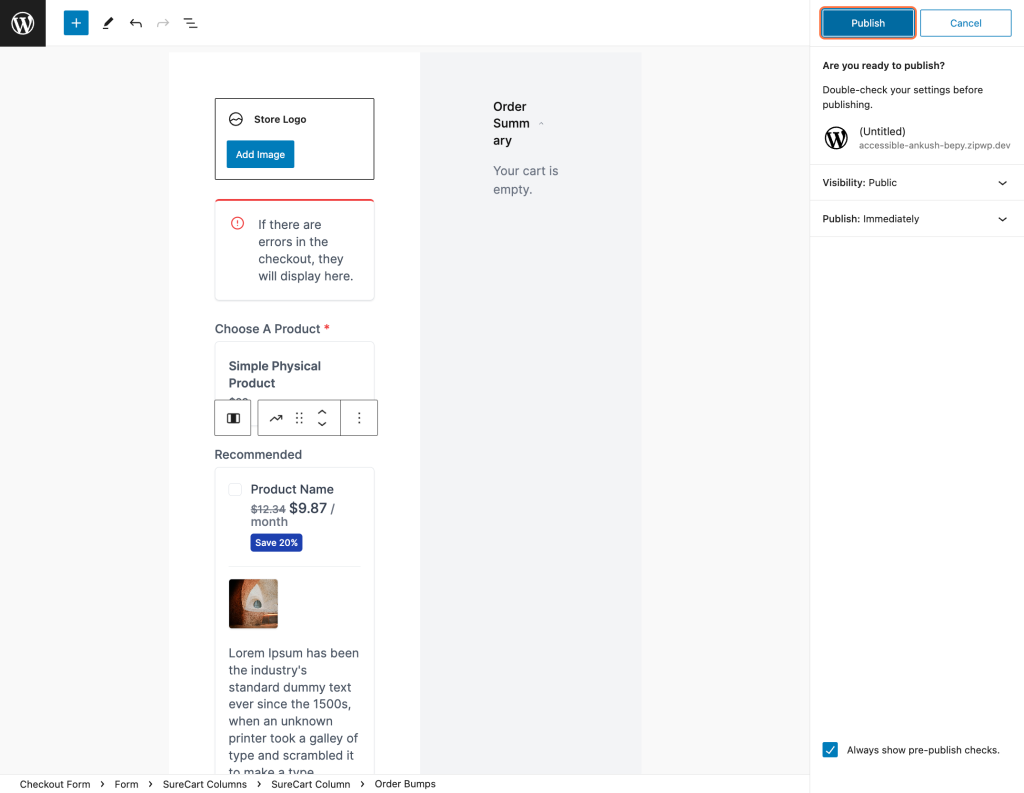
Step 8: Now, you can position the element anywhere on your form by clicking on the arrows or simply dragging and dropping it to your preferred location.
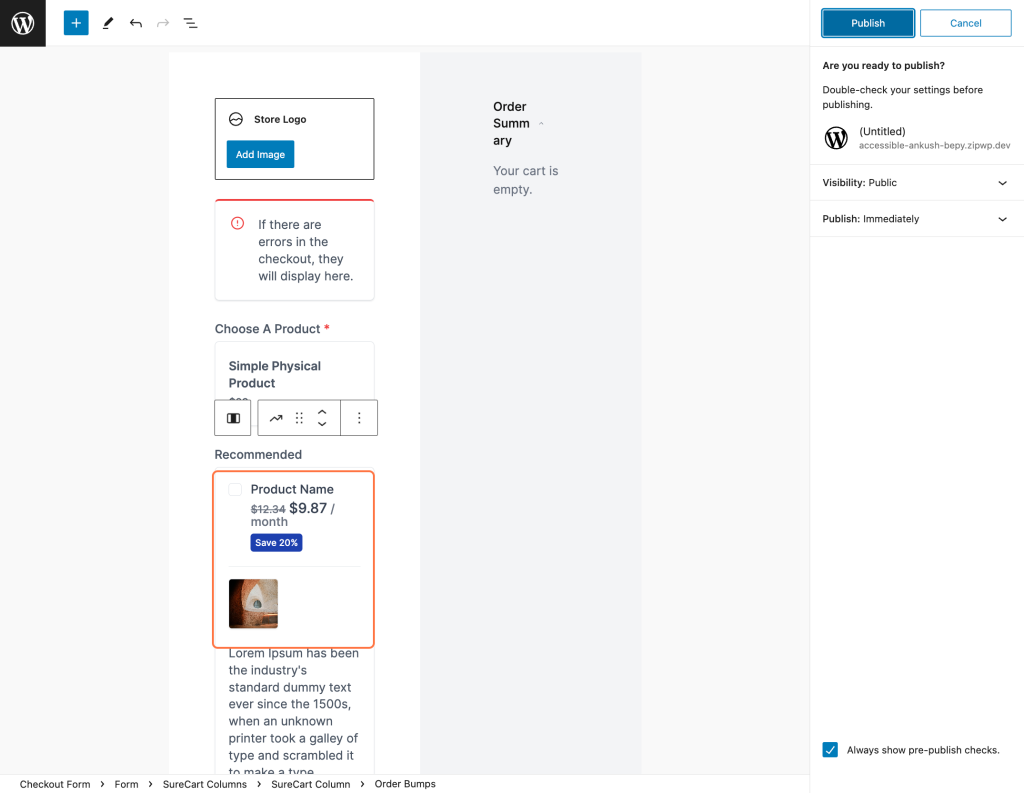
Step 9: To save your changes, simply click on the Publish button, which is located in the top right corner of your screen.
That’s it with this guide! If you face any issues while adding order bumps, please reach out to us!
We don't respond to the article feedback, we use it to improve our support content.