
- Product Types
- Prices Types
- Adding Products
- One Time Pricing
- Subscription Pricing
- Subscription Trials Setup
- Installment Pricing
- Donation / Pay What You Want
- Inventory Management
- Product Variants
- Variant Images
- Digital Downloads
- Change Product Availability
- Product Collections
- First-Time Payment Discounts
- Manage Product Access
- Create Product With Free Trials
- Charge Set Up Fee on Trials
- Product List
- Product Pages
- Product Content
- Custom Buy Links
- Product SEO
- Change Permalinks
- Custom Fields
- Related Products
- Price Boost
- Test Mode/Payments
- Edit & Customize Form
- Change Form Template
- Delete SureCart Forms
- Add Checkout Form
- Checkout Form With Gutenberg
- Checkout Form in Elementor
- Custom Thank You Page
- Create Donation Form
- Customize Confirmation Popup
- Include Coupons in URLs
- Pre-Fill Checkout Fields
- Change Checkout Texts
- Password Field in Checkout
- Default Country Code
- Add Terms to Checkout
- Conditional Block Checkouts
- Remove Coupon Field
- Hide Quantity Option
- Disable Quantity Editing
- Disable Item Removal
- Country Specific Purchases
- Update Store Details
- Dark Mode
- Orders & Receipts
- Manage Slide-out Cart
- Customers Section Overview
- Create Customer
- Delete Customer
- Update Customer Details
- Edit Invoice Details
- Create Shipping Profiles
- Manage Shipping
- Disable Payment Processor
- Manage Store Notifications
- Manage PayPal Branding
- Transfer Store
- How to Download SureCart Purchase Invoice
- Fix View Order Button
- Fix Express Payment Buttons
- How To Stop Sending WooCommerce Notifications via SureCart?
- Fix PayPal Test Connection
- Fix Sign-In Loop
- Fix Order Confirmation Redirect
- Fix Divi Bullet Point Issue
- Fix Customer Dashboard
- Fix JSON Response Error
- Failed Payment Behavior
- Fix Stripe Zip Code Error
- Fix "Product Can’t Be Blank"
- Troubleshooting Guide
- PayPal IPN Warning Emails
- Caching Configuration for SureCart
- Why iDEAL Might Not Appear in Your Checkout
- Compatibility Guide
- Fix – SureCart store disconnected
Managing the Affiliates
In this documentation, we’re shifting focus from initial setup to operational management of your affiliate program.
Here you will learn how to:
- Review and approve affiliate requests
- Monitor clicks and referral activity
- Process affiliate payouts (including bulk batches)
- Explore the affiliate portal from your affiliates’ perspective
By the end of this part, you’ll be equipped to manage the day-to-day activities of your affiliate program effectively and ensure that everything from approvals to payments runs smoothly.
Managing the Affiliates is quite simple. On the left menu, click on Affiliates. Presently, we have only four primary menus:
- Requests
- Clicks
- Referrals
- Payouts
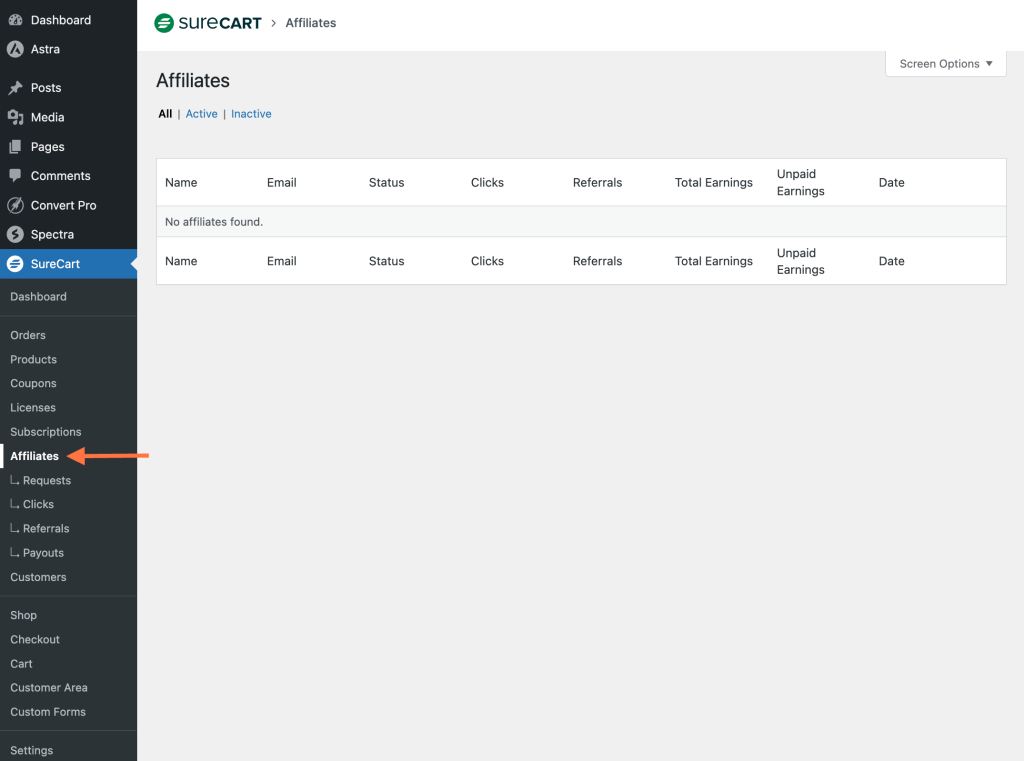
Requests
When affiliates sign up using the form mentioned above, you’ll see a new request in your WordPress dashboard.
- You can find these requests at SureCart > Affiliates > Requests.
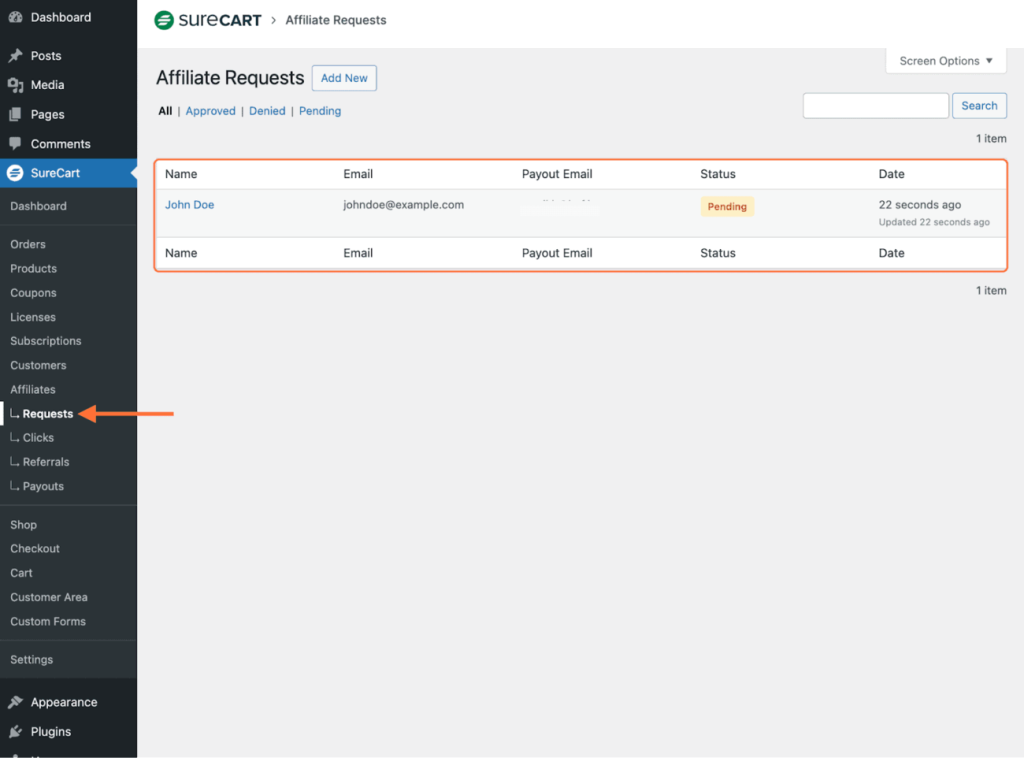
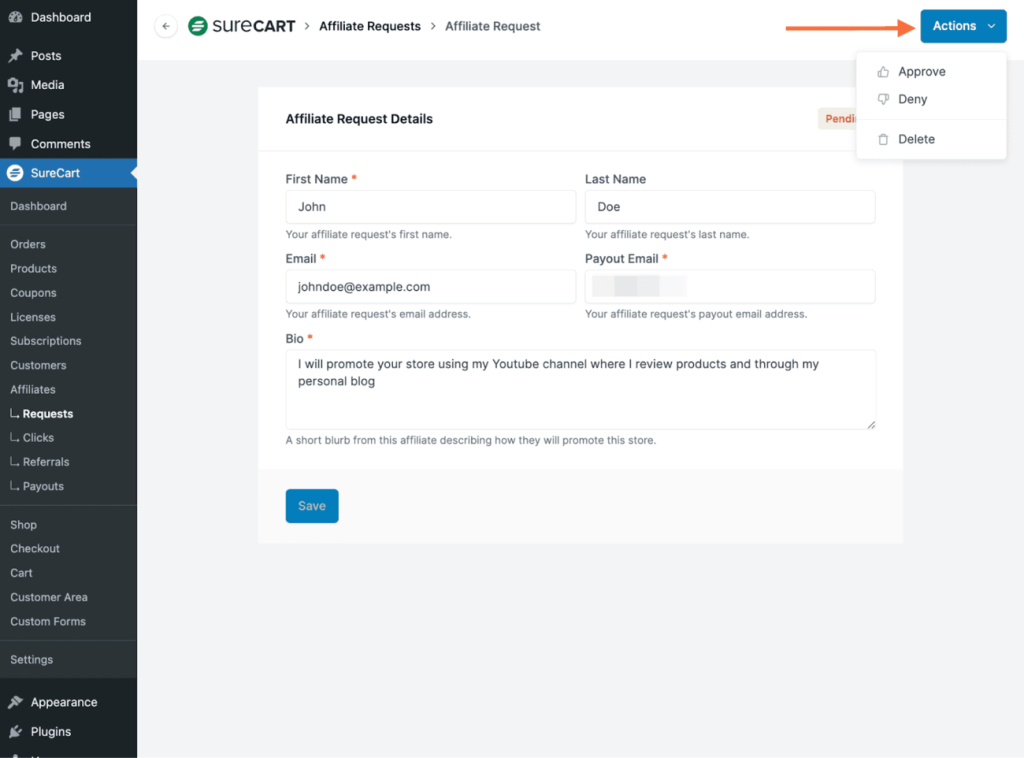
- You can approve, deny, or delete the request by clicking on the affiliate’s name and the Actions dropdown menu.
Once the affiliate is approved, they will receive an email notifying them that their affiliate request has been approved.
The affiliates need to click the “Go to Affiliate Portal” button in the email, then verify their email by entering a code received in the same email.
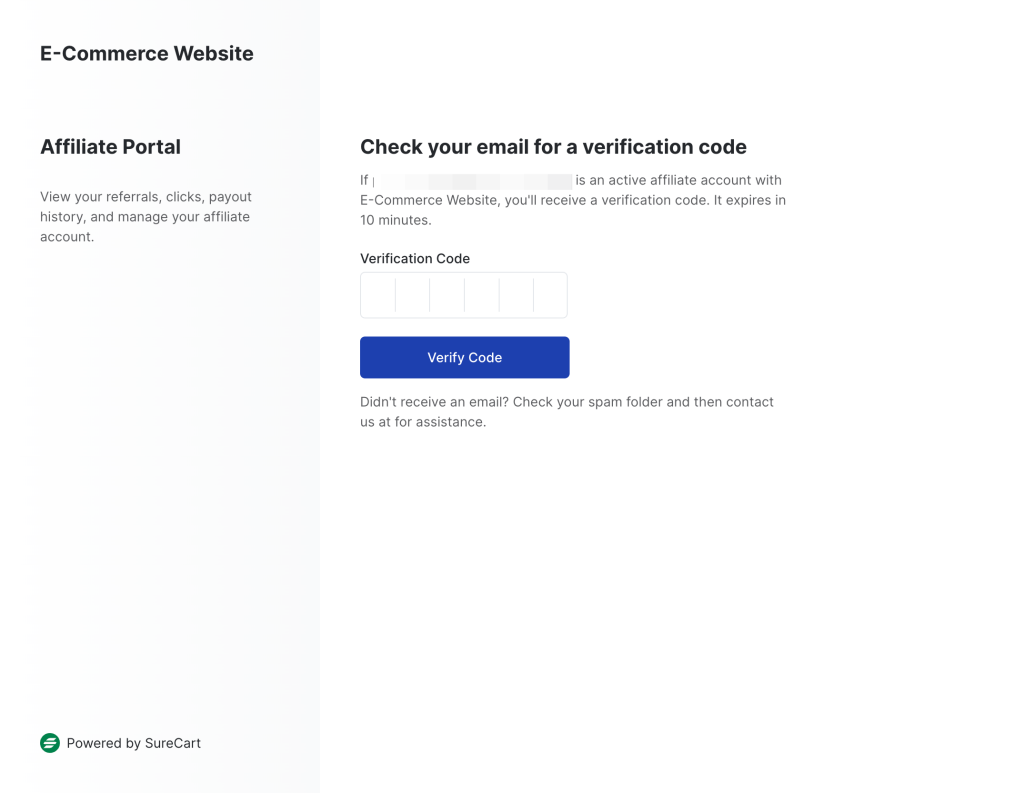
Once your affiliates enter and verify this code, they’ll be redirected and logged into their affiliate portal. This portal will have “https://your-store-id.surecart.com/affiliates” as the URL.
Affiliates will use this platform to share and track the referrals they make to customers. We’ll discuss the affiliate dashboard in detail in the last section.
Clicks
These are all the clicks made through a specific affiliate’s unique URL.
For instance, if an affiliate shares their special link and people click on it, you can see the updates in real-time here.
This section includes the affiliate’s name and their special URL so that you can see which affiliate is drawing in more clicks.
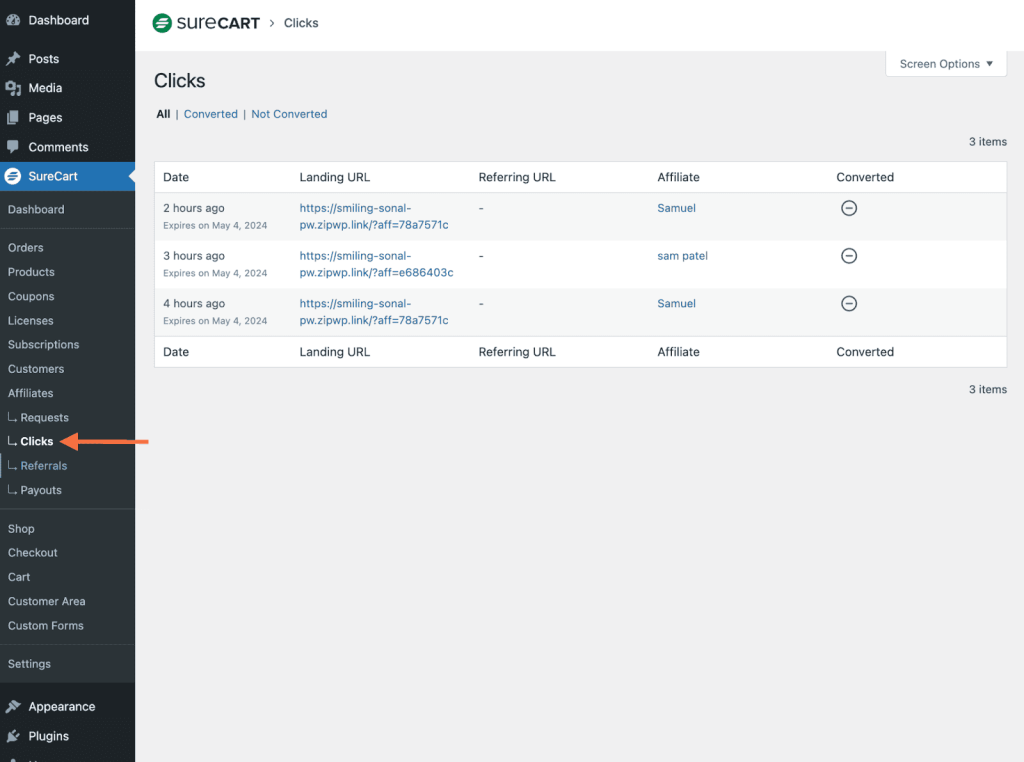
You can select to view All, Converted, or Not Converted clicks by clicking on the corresponding tab.
Referrals
A referral happens when customers click on an affiliate’s special URL and make a purchase in your store.
- You’ll be notified about this referral at SureCart > Affiliates > Referrals.
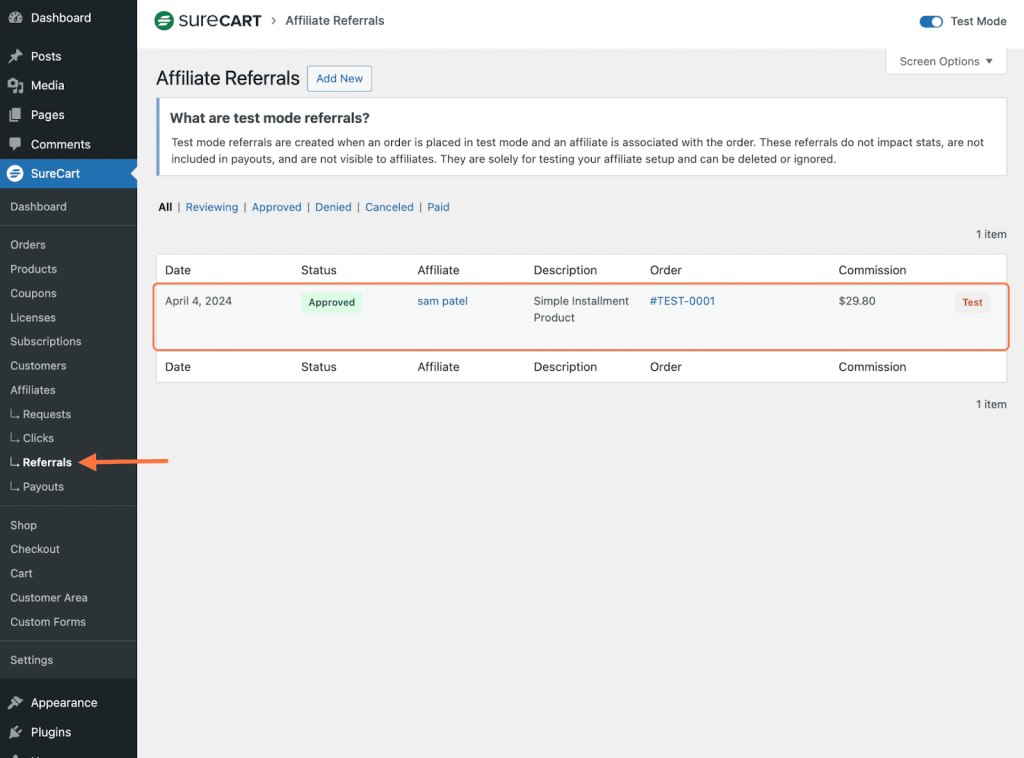
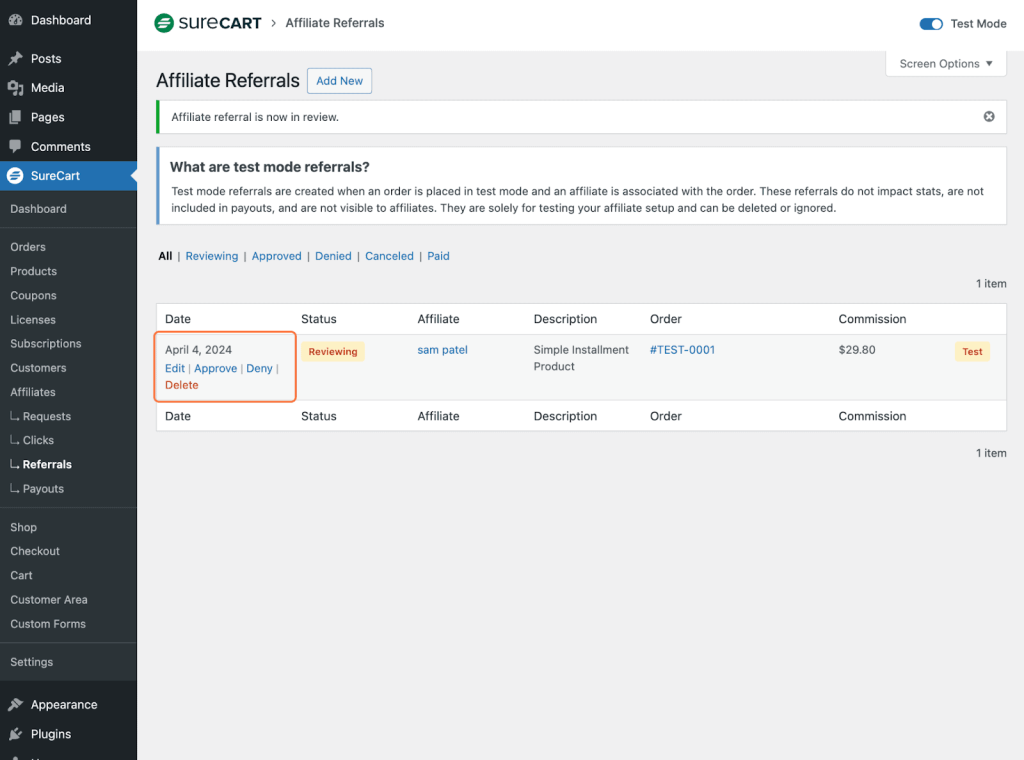
- You can approve, deny, edit, or delete this referral here based on your preferences.
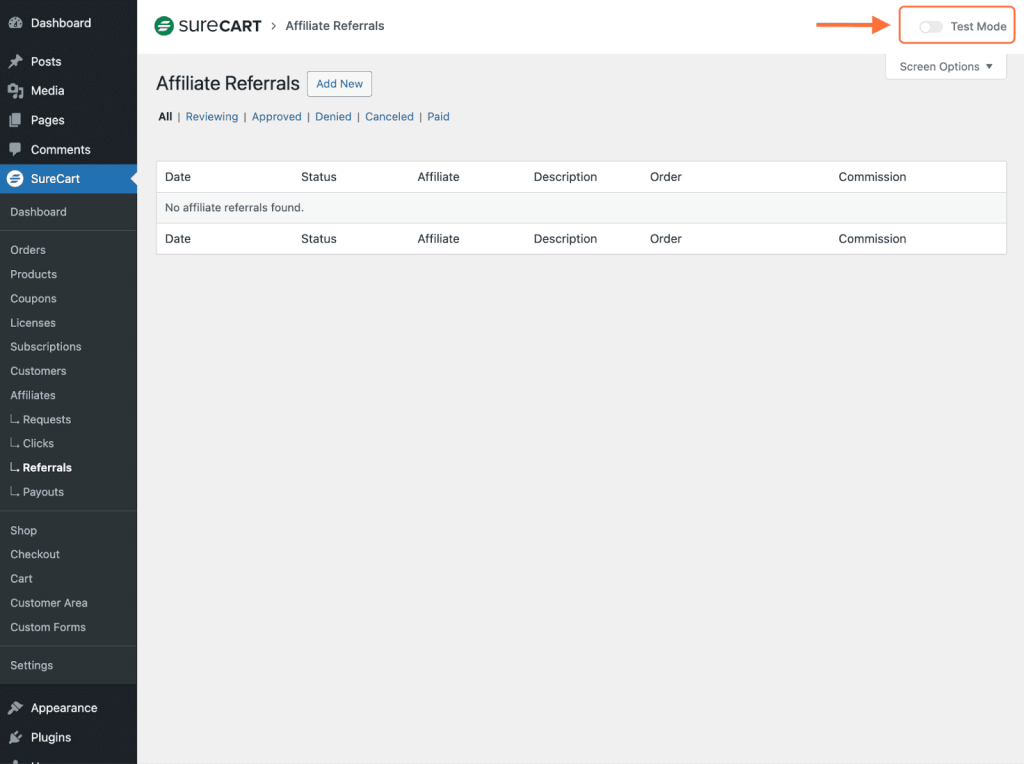
Optionally, you can enable this option to track your referrals in test mode. This is useful if you want to test how your affiliate process works before making it live.
Paying Your Affiliates
Every approved referral deserves a fair commission for the affiliate.
To process these commissions, go to the Payouts in your WordPress dashboard and follow these steps:
- Navigate to SureCart > Payouts, and click on the Add New button.
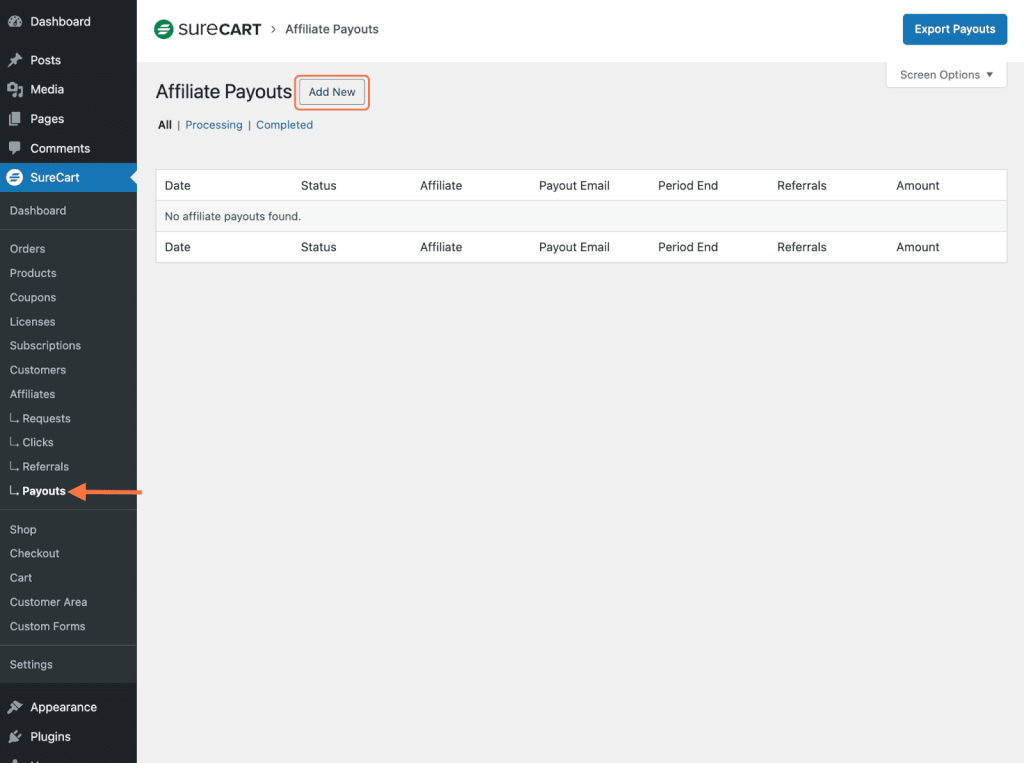
- Select the affiliate candidate you want to pay along with the end period for processing the payout.

Click on the Create button once done. SureCart will generate a list of all payouts that meet the specified criteria and assign them the Processing status.
Bulk Affiliate Payouts
With SureCart’s payout batches, you can easily pay multiple affiliates who’ve earned a minimum amount during a certain time at once. To do this:
- Navigate to Affiliates > Payouts and select “Payout Batch” from the Add New button dropdown.
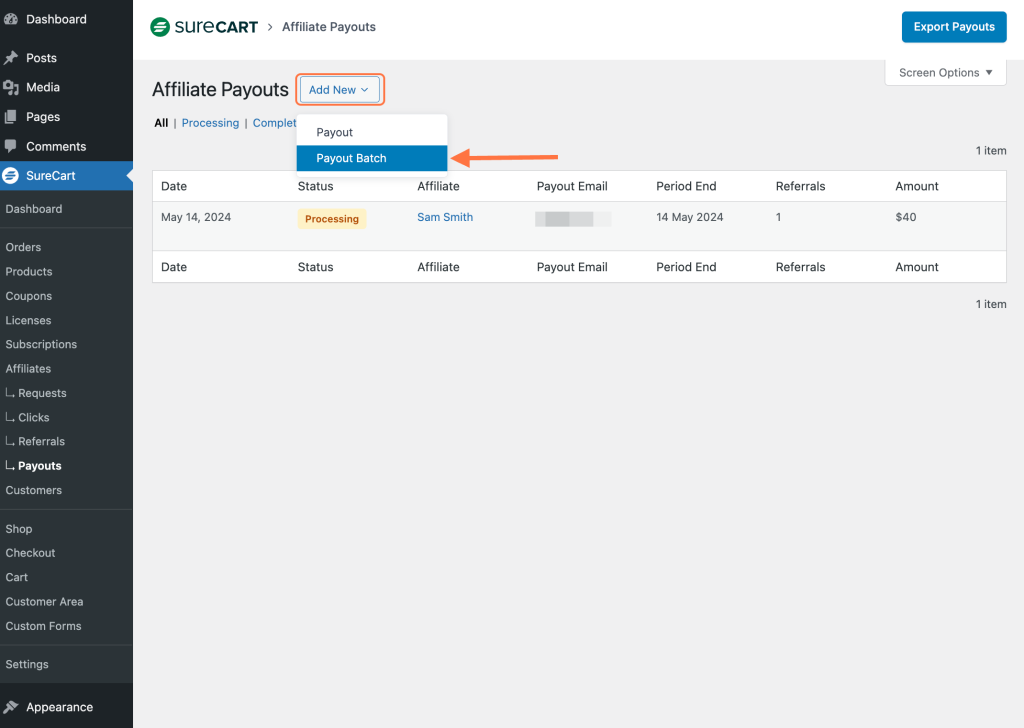
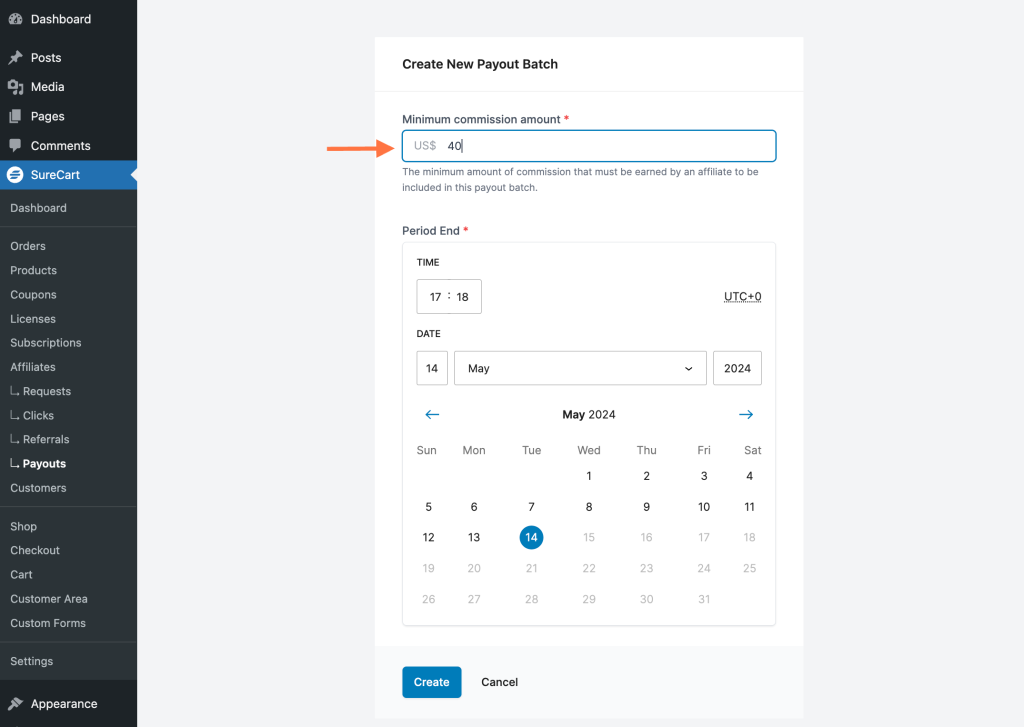
- Enter the minimum amount of commission that must be earned by an affiliate to be included in this payout batch.
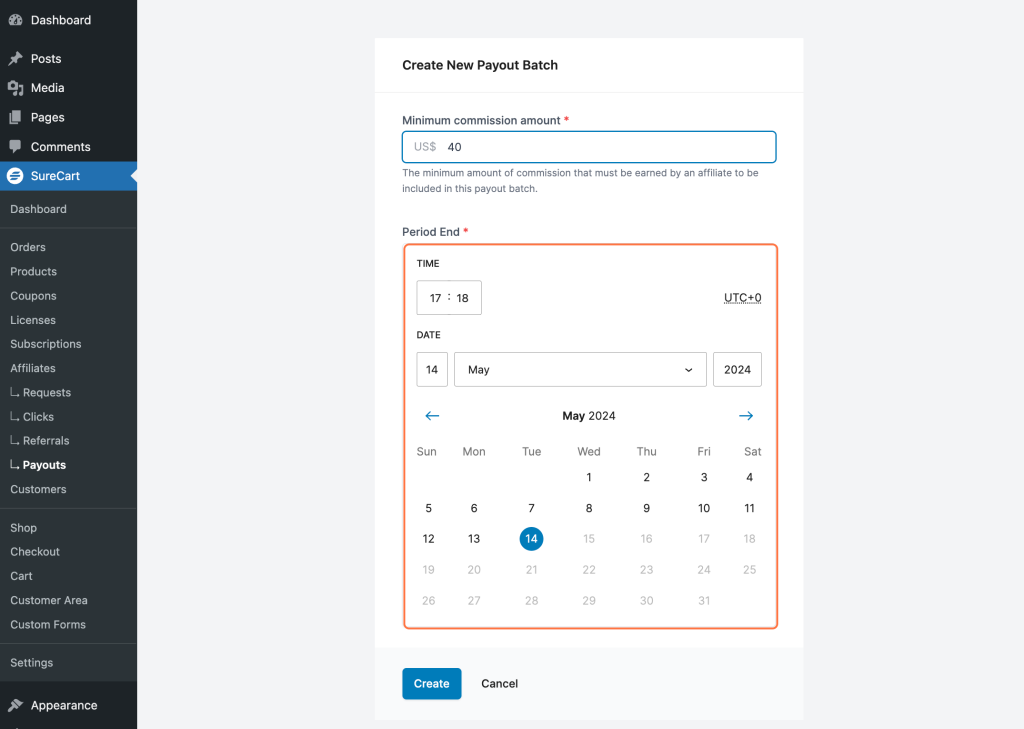
- Select the end date and time for referral consideration
- Click on the “Create” button.
To understand this with the above example, let’s say you set the minimum commission amount to $40.
This means that any affiliate who has an approved referral of $40 or more in commission will be included in the payout batch.
Here, affiliates with referrals before 5:18 PM on May 14th will receive payment.
Please note, that right now, it’s not possible to make payments from the platform, this step must be done manually by the merchant from the side.
The Affiliate Portal
On the affiliate portal, affiliates can view all their metrics. When they log in to their account, they can see an overview of the main metrics displayed.
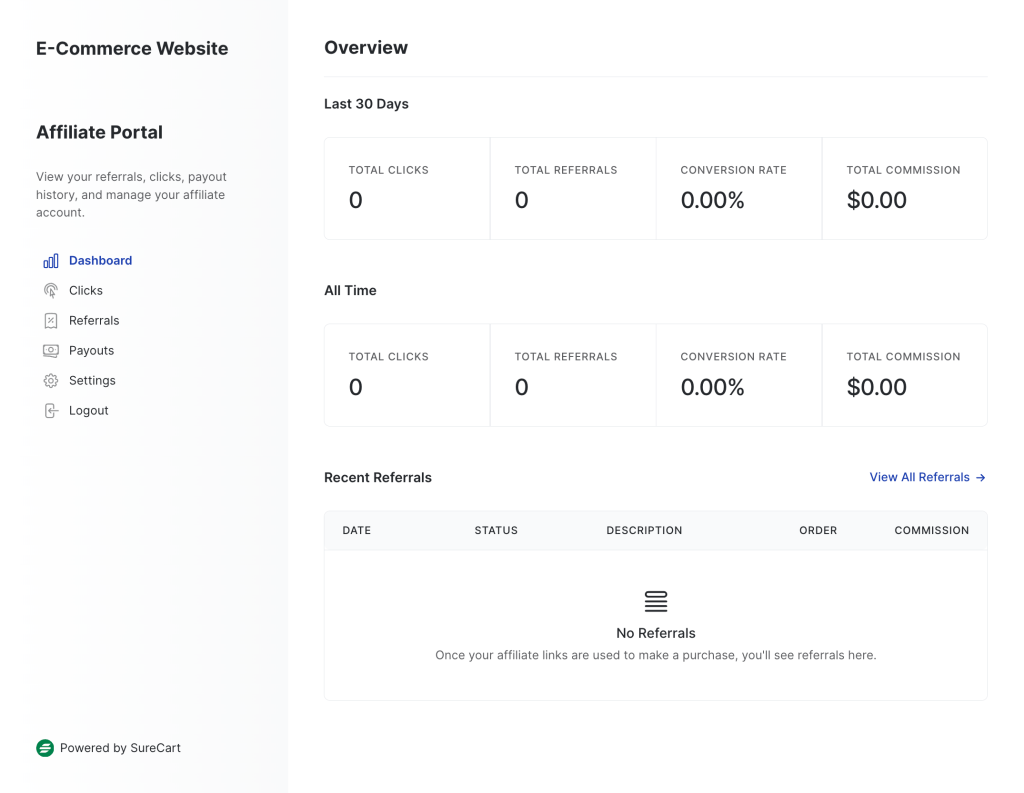
This affiliate portal will have “https://your-store-id.surecart.com/affiliates” as the URL.
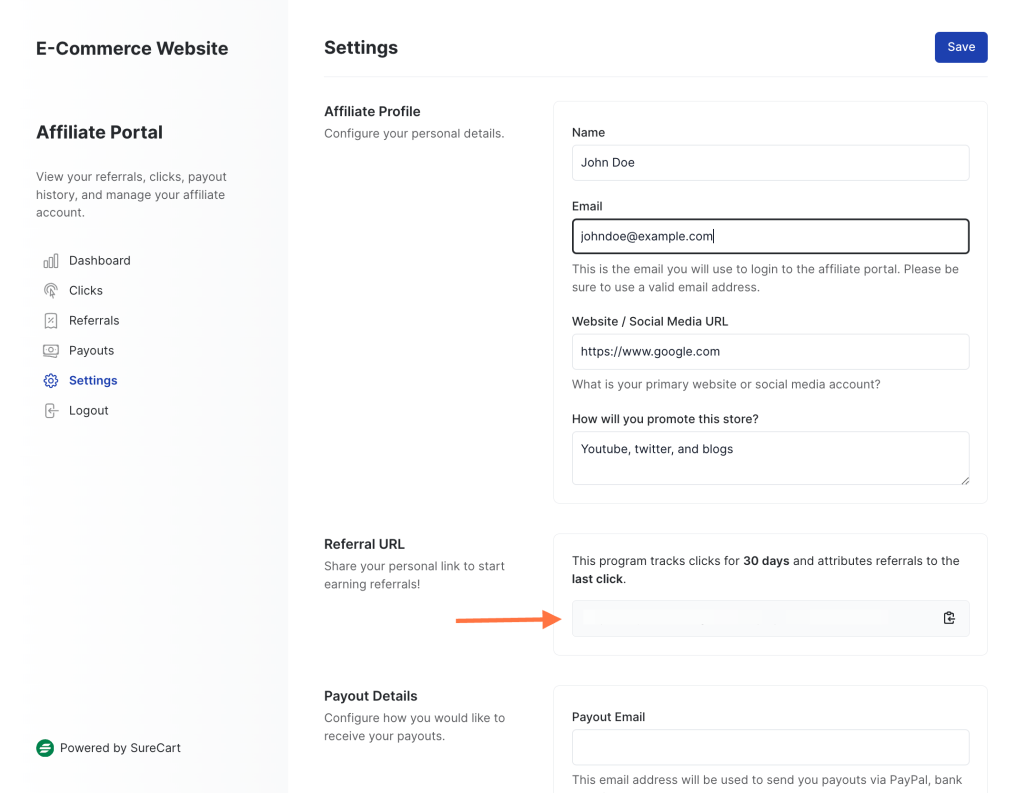
- Affiliates will promote your store using a special link they’ll receive. They can find it under Settings.
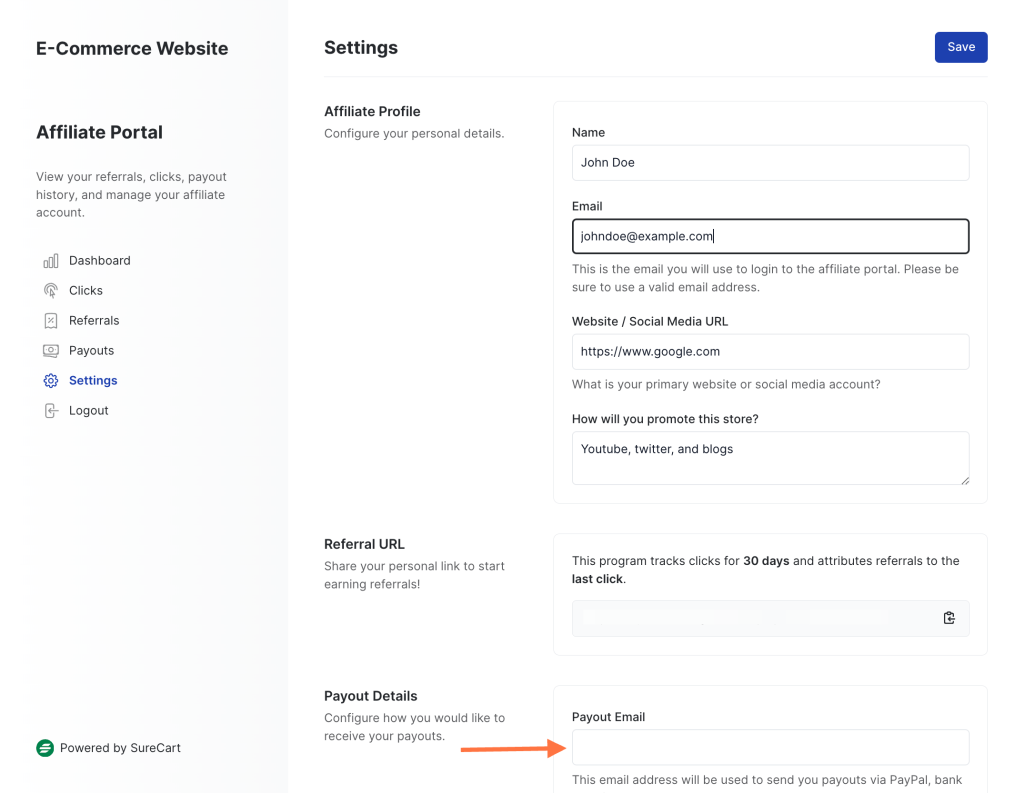
- Your affiliate can also enter the payout email where they wish to receive the payout.
That’s it! Hope this article was helpful. If you need more information, please feel free to reach out to us.
We don't respond to the article feedback, we use it to improve our support content.