
- Product Types
- Prices Types
- Adding Products
- One Time Pricing
- Subscription Pricing
- Subscription Trials Setup
- Installment Pricing
- Donation / Pay What You Want
- Inventory Management
- Product Variants
- Variant Images
- Digital Downloads
- Change Product Availability
- Product Collections
- First-Time Payment Discounts
- Manage Product Access
- Create Product With Free Trials
- Charge Set Up Fee on Trials
- Product List
- Product Pages
- Product Content
- Custom Buy Links
- Product SEO
- Change Permalinks
- Custom Fields
- Related Products
- Price Boost
- Test Mode/Payments
- Edit & Customize Form
- Change Form Template
- Delete SureCart Forms
- Add Checkout Form
- Checkout Form With Gutenberg
- Checkout Form in Elementor
- Custom Thank You Page
- Create Donation Form
- Customize Confirmation Popup
- Include Coupons in URLs
- Pre-Fill Checkout Fields
- Change Checkout Texts
- Password Field in Checkout
- Default Country Code
- Add Terms to Checkout
- Conditional Block Checkouts
- Remove Coupon Field
- Hide Quantity Option
- Disable Quantity Editing
- Disable Item Removal
- Country Specific Purchases
- Update Store Details
- Dark Mode
- Orders & Receipts
- Manage Slide-out Cart
- Customers Section Overview
- Create Customer
- Delete Customer
- Update Customer Details
- Edit Invoice Details
- Create Shipping Profiles
- Manage Shipping
- Disable Payment Processor
- Manage Store Notifications
- Manage PayPal Branding
- Transfer Store
- How to Download SureCart Purchase Invoice
- Fix View Order Button
- Fix Express Payment Buttons
- How To Stop Sending WooCommerce Notifications via SureCart?
- Fix PayPal Test Connection
- Fix Sign-In Loop
- Fix Order Confirmation Redirect
- Fix Divi Bullet Point Issue
- Fix Customer Dashboard
- Fix JSON Response Error
- Failed Payment Behavior
- Fix Stripe Zip Code Error
- Fix "Product Can’t Be Blank"
- Troubleshooting Guide
- PayPal IPN Warning Emails
- Caching Configuration for SureCart
- Why iDEAL Might Not Appear in Your Checkout
- Compatibility Guide
- Fix – SureCart store disconnected
How To Add Custom Fields To Your Product Page
This guide will show you how to create a custom field and display it on your SureCart product page.
For this tutorial, we’ll use the MetaBox plugin as an example, but you can use any tool you prefer, such as ACF. These tools can recognize your SureCart product post type and make it easy to add custom fields.
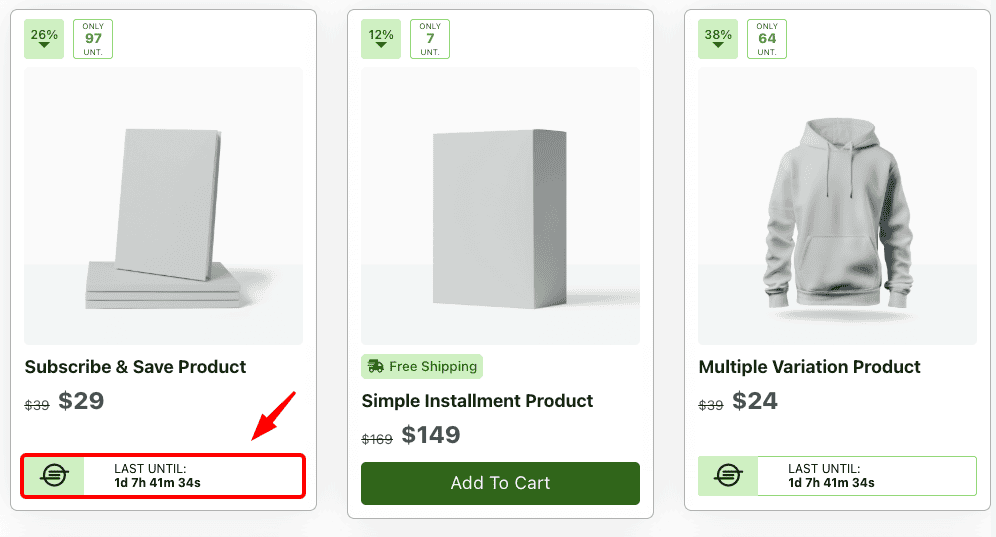
For instance, if you want to run a scarcity campaign, you could add a custom field like “Product on Sale” to highlight products that are part of a limited-time promotion. This helps buyers quickly identify products with active sale offers.
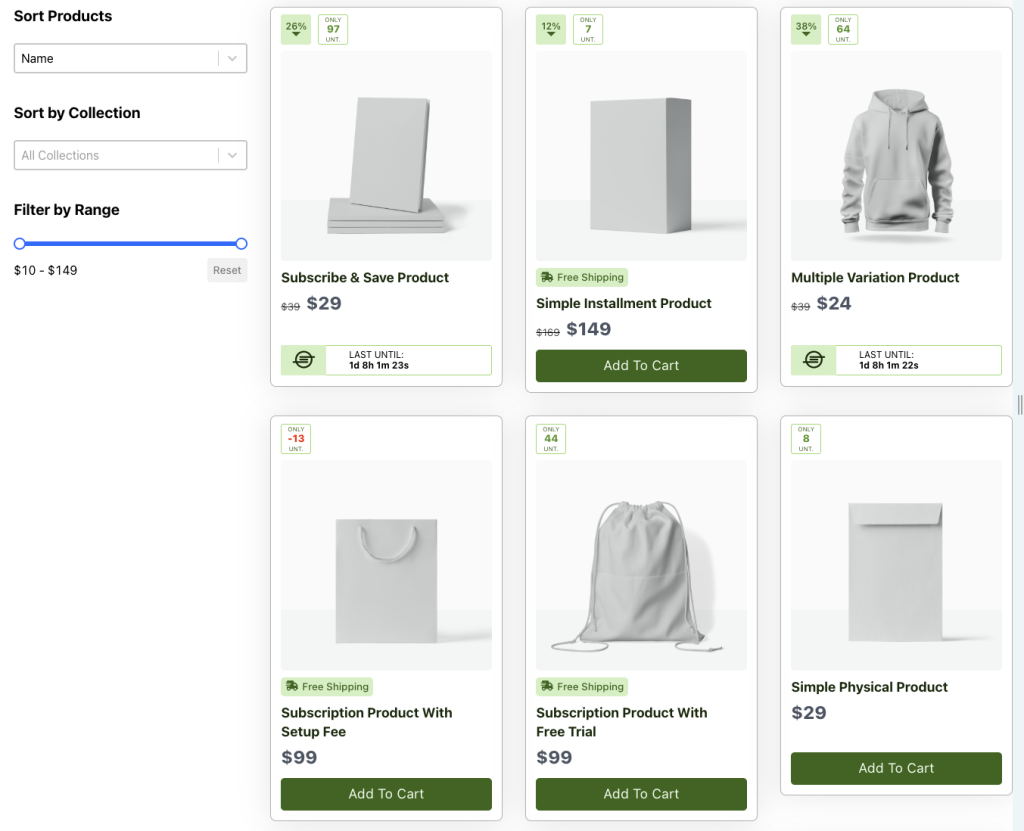
In this example, we’ll add a “Product on Sale” field to a product page, but you can also use custom fields for other purposes, like file uploads, maps, or images.
Let’s get started!
List of All Product Custom Fields
The following table outlines all SureCart native product custom fields. For each field, we’ve included a description to help you understand its purpose, along with a practical example to show how it might be displayed on your website.
| Custom Field | Description | Example |
|---|---|---|
| min_price_amount | The lower price of the product, excluding the currency symbol. | 99.90 |
| max_price_amount | The higher price of the product, excluding the currency symbol. | 149.90 |
| display_amount | How the price is displayed, including the currency symbol. | $99.90 |
| scratch_display_amount | The “original” price or list price, displayed with a currency symbol. | $120.00 |
| range_display_amount | A range showing the lowest to the highest price of the product. | $99.90 - $149.90 |
| available_stock | The current stock level of the product. | 25 |
| sku | The product’s SKU (Stock Keeping Unit) code. | SC-001 |
| weight | The product’s weight without the unit (e.g., kilograms, grams, or pounds). | 1.5 |
| weight_unit | The unit of the product’s weight (e.g., kg, g, lb). | kg |
Configuring Custom Fields In Meta Box
Note: You need to have the Metabox plugin installed and activated on your site before we proceed.
To do this, go to your WordPress dashboard, and:
- Navigate to Meta Box > Custom Fields.
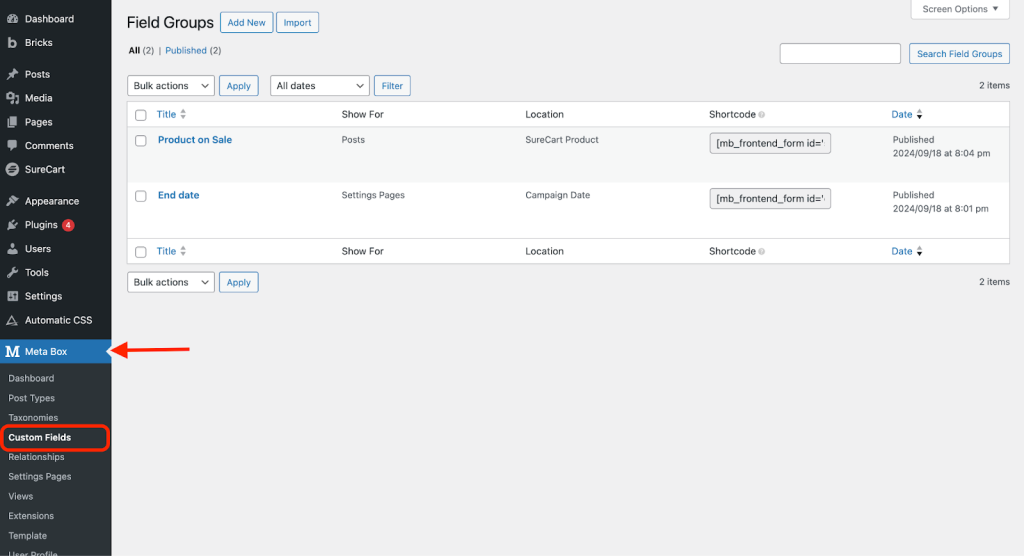
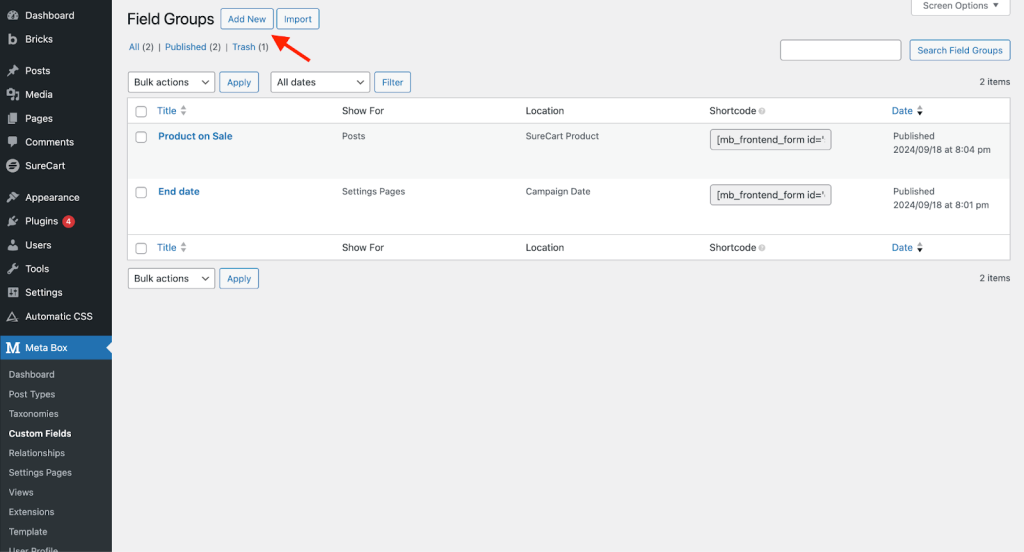
- Here, click Add New to create a new field group.
- Name the field group anything descriptive, like “Product on Sale.” This is for your internal reference.
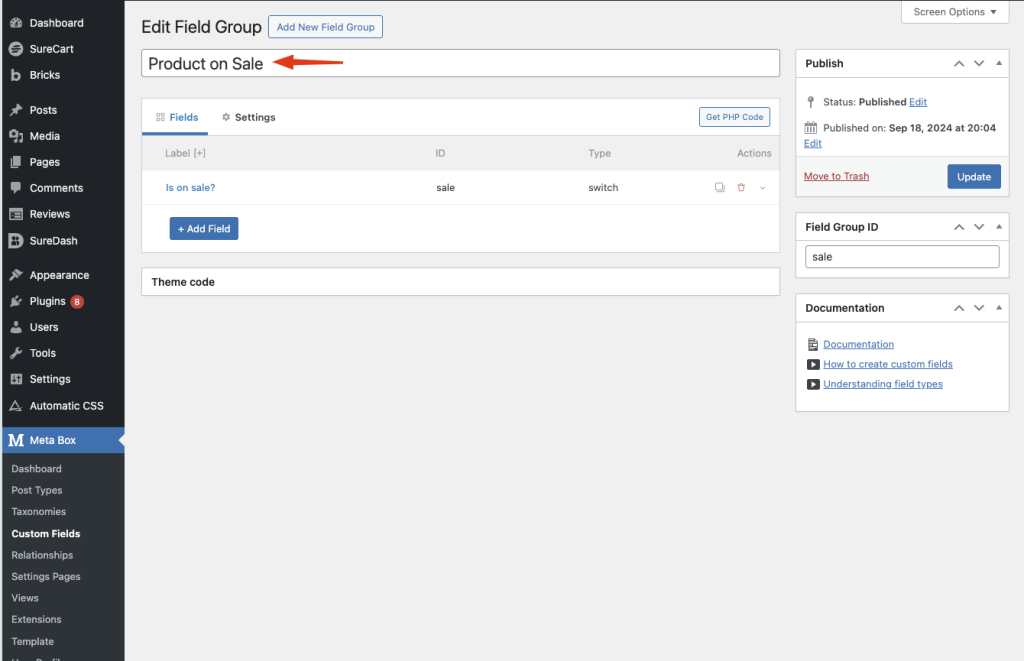
- Click the Add Field button and choose any field type. In this example, we’ll use a “Switch” field type, so you can enable or disable the campaign on each product.
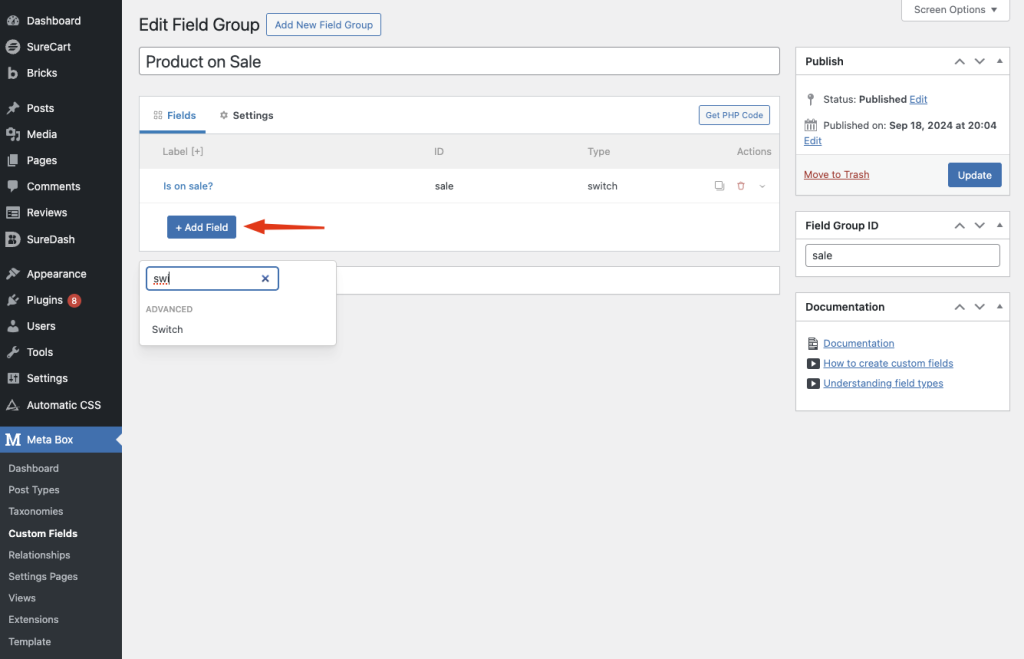
You can search and choose any other field type you wish.
- Click the newly created field to open its settings and customize how it will appear in your product editor. For example:
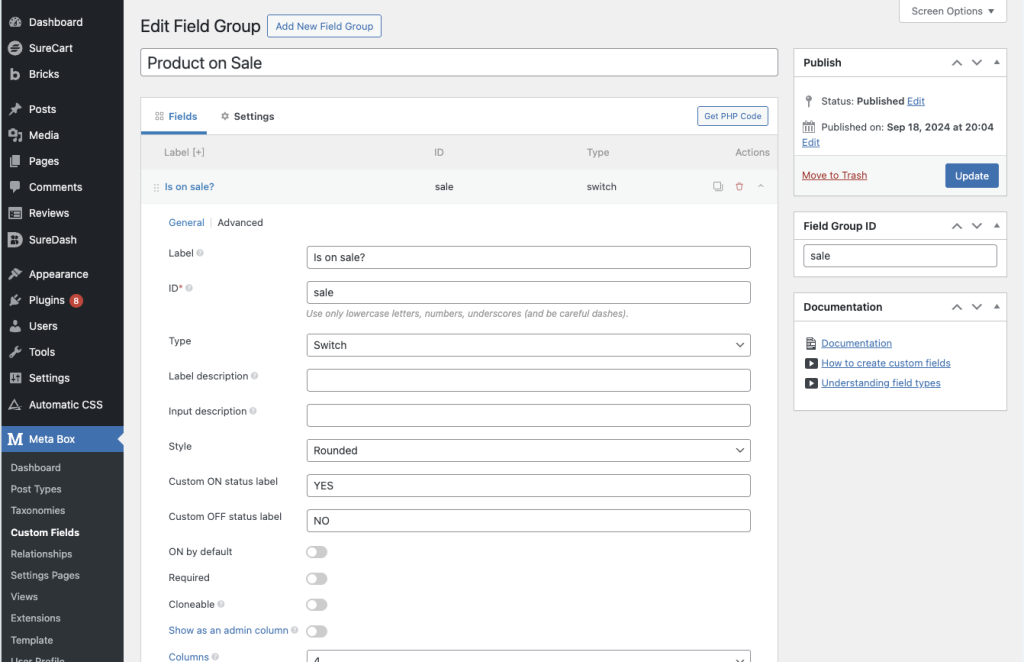
- Under Settings, choose “SureCart Product (sc_product)” along with the “Post Type” dropdown. This ensures the custom field will show up on your product pages.

Note: You can choose to add it for all your products or just specific product collections.
Click the “Publish” button on the right to add the custom field to your SureCart product settings.
Customizing The Custom Fields In Your Product Settings
Now, you should see the custom field added to your product settings, to verify it:
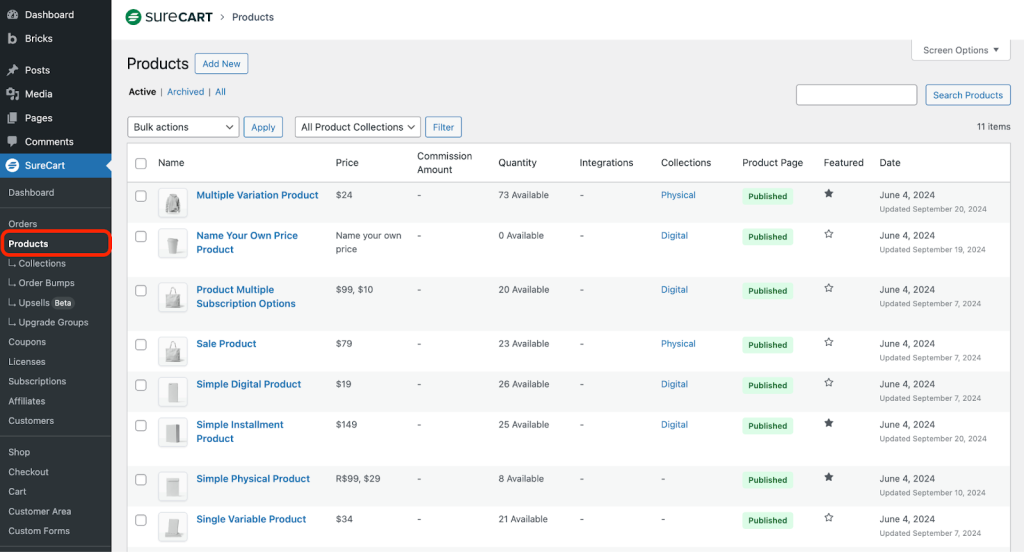
- Go to SureCart > Products and select any preferred product.
- Scroll down to the Content section and click on the Open Content Designer button.
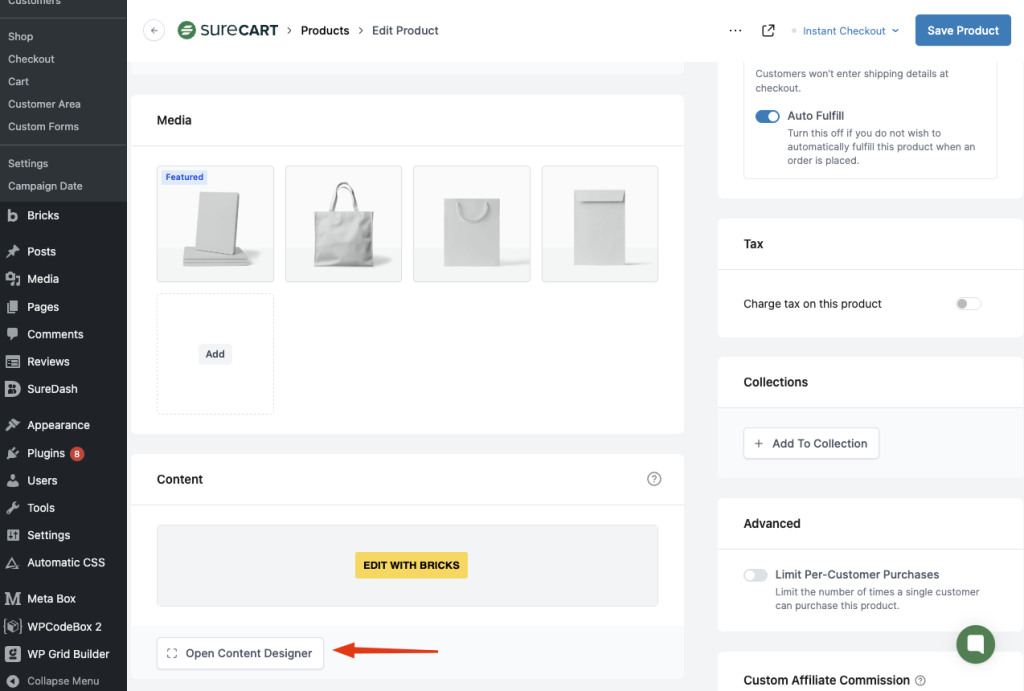
You can now view the custom field and manage whether the sale offer is visible for each product.
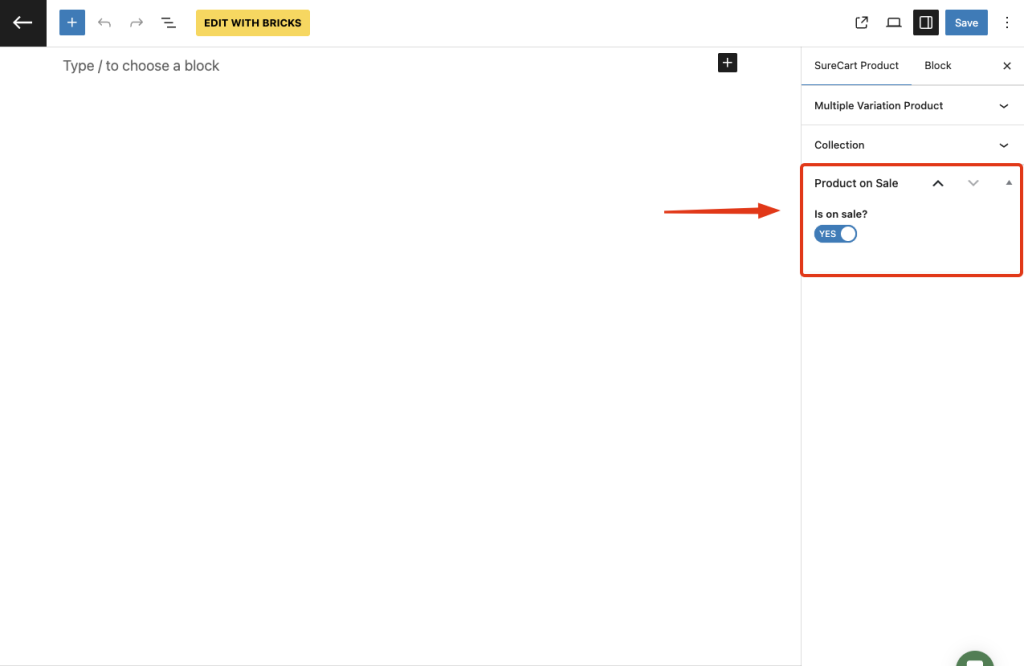
Once done, click the “Save Product” button in the top-right corner. The custom field will then appear only for the product where you enabled it, as shown in the example below.
Displaying Custom Fields With The Block Editor
If you are using the block editor (Gutenberg), you can display SureCart product custom fields on your product pages using the Meta Field Block plugin. This plugin allows you to display any custom field in the Gutenberg editor easily and works seamlessly with SureCart custom fields.
Using Meta Field Block Plugin
The Meta Field Block plugin provides a straightforward way to display custom fields as blocks directly within the Gutenberg editor.
Steps to Use Meta Field Block:
- Install and activate the Meta Field Block plugin from the WordPress repository.
- Edit your product template.
- Add a new block and search for Meta Field Block.
- In the block settings, input the Field Name corresponding to the SureCart custom field you want to display. For example:
min_price_amountmax_price_amountdisplay_amountavailable_stocksku
- Save the changes and preview your product page to ensure the field is displayed correctly.
Example Use Case
If you want to display the Available Stock of a product on the product page:
- Add a Meta Field Block in the Gutenberg editor.
- Enter
available_stockas the Field Name in the block settings. - Save the changes.
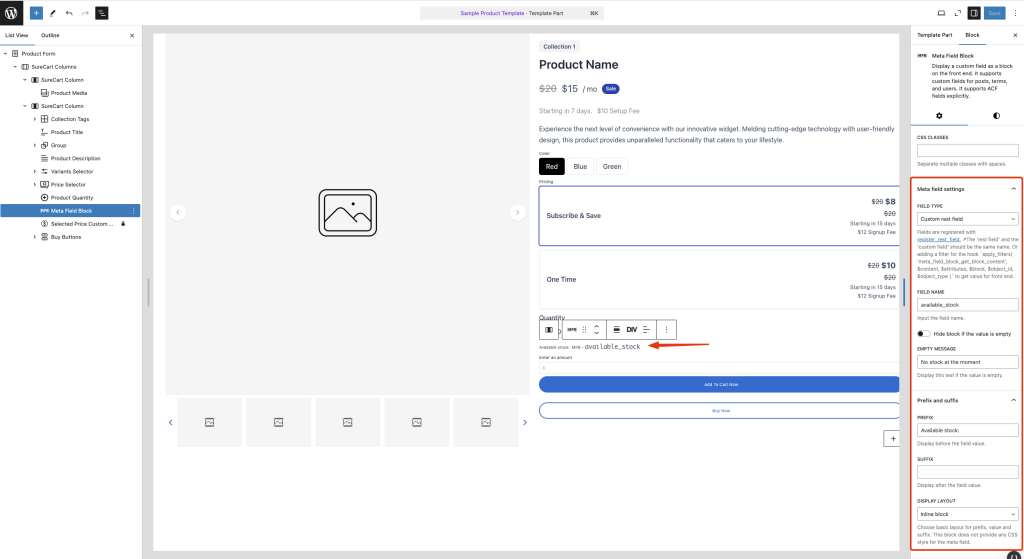
On the frontend, the stock level will display dynamically.

Displaying The Custom Fields With Bricks Builder
Now, you’ll need to decide where and how to display the custom field on your product’s front end.
To do that, open your product template in the page builder of your choice. For this guide, we’ll demonstrate using the Bricks builder, but this can also be done using the block editor.
- Drag the “Basic Text” field anywhere on the product page where you want to display the custom field.
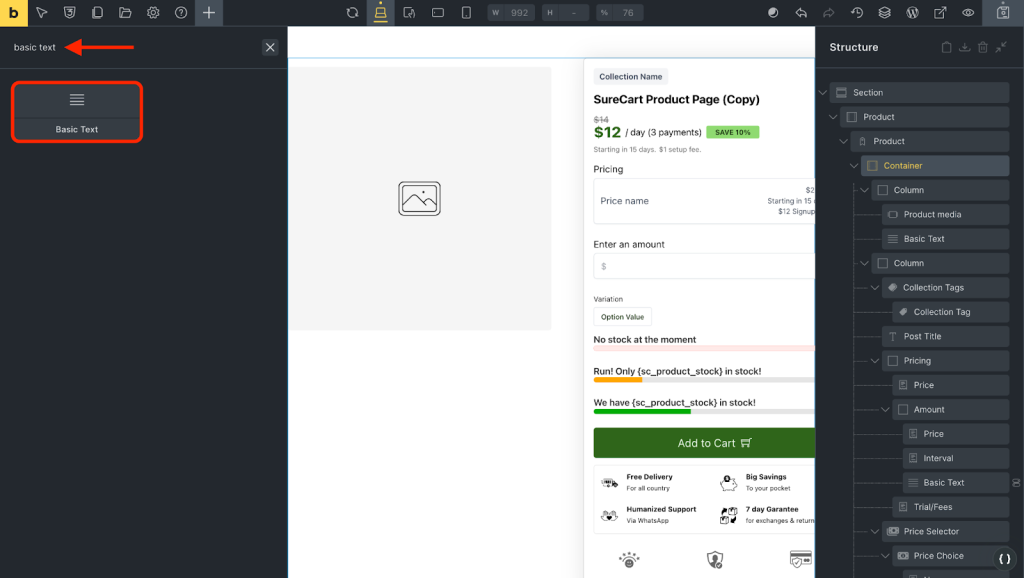
- Select the basic text element, delete any text inside of it, and click on the following “Dynamic Data” symbol inside.
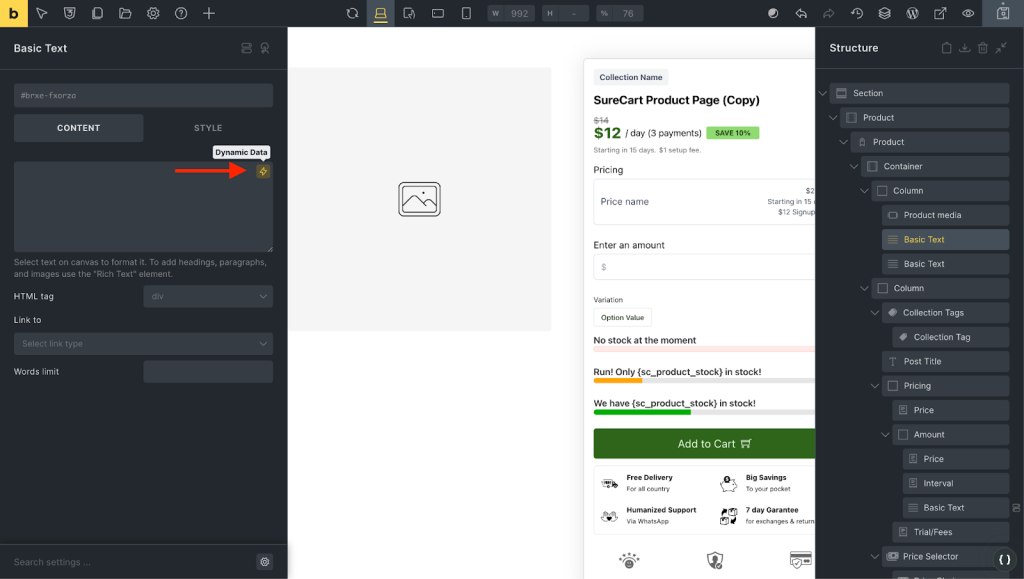
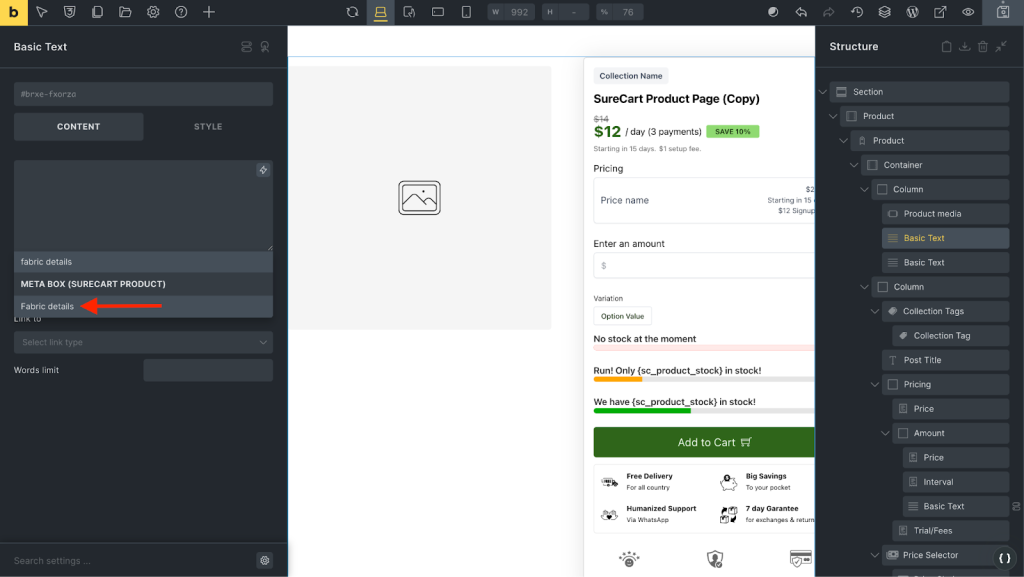
- Select the custom field label that you want to add here. For example, we’ll search and select the “Fabric Details” custom field here.
A new shortcode will be added inside the basic text field. Your custom field will be embedded and displayed here. Finally, click on the “Save” or “Publish” button.
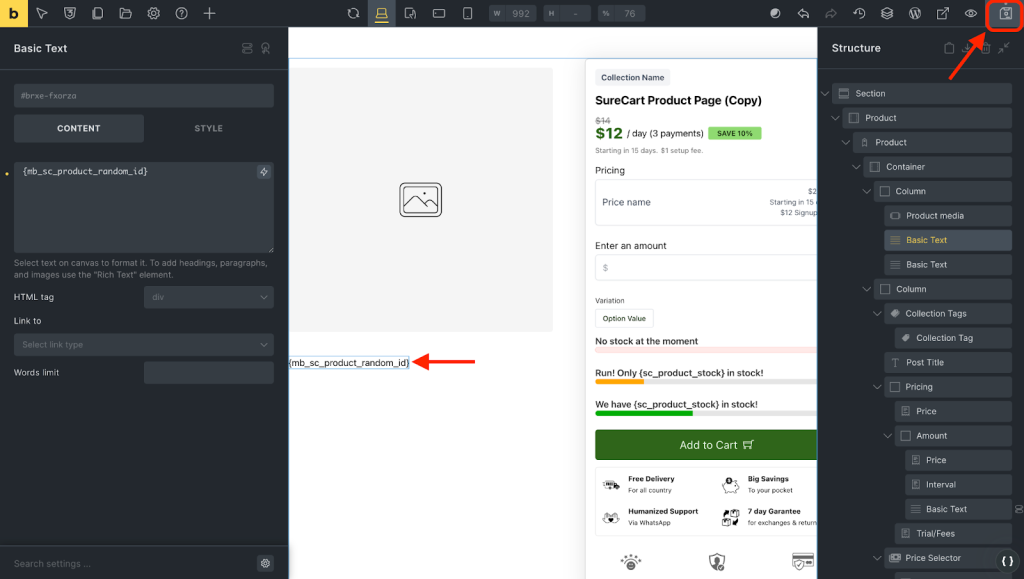
The custom field content should now appear on the product front end. Verify it yourself to check the same.
That’s it! You can create many more custom fields to enhance your product pages, making them more dynamic and tailored to your needs regarding the builder you are using.
We don't respond to the article feedback, we use it to improve our support content.